Contact us
 Customer Area
 Visit LWS
Rate this article :
This article was useful to you ?
 Yes
Yes
 No
No
 Article read
30743 once
Article read
30743 once Merci ! N'hésitez pas à
poser des questions sur nos documentations si vous souhaitez plus d'informations et nous aider à les
améliorer.
Merci ! N'hésitez pas à
poser des questions sur nos documentations si vous souhaitez plus d'informations et nous aider à les
améliorer.Vous avez noté 0 étoile(s)



Sommaire
Procédure
This documentation explains how to download or restore a backup of your MySQL database from the LWS Panel.
This operation can be useful if you want to recover an old version of your site after an error, deletion of content, mishandling or a recent malfunction.
This procedure is intended for customers with LWS Linux shared hosting, managed from the LWS Panel.
The hosting must allow the management of MySQL databases, which excludes domain formulas.
Make sure you have the following
It is also important to understand that a MySQL database may contain essential elements of your site, such as content, settings, user accounts, orders or forms, depending on the tool used. Restoring this database can therefore significantly change the way your site behaves.
Restoring a database alone does not always restore an entire site to its expected state.
This is because a website is often based on two distinct elements:
If you only restore the database, but the site files remain more recent, you may end up with a partially inconsistent site. You should also remember to restore the web files to the same date.
The LWS Panel offers a one-click restore function for various services, including web, MySQL and mail data. The retention period depends on the package: some packages offer access to backups of the last 30 days, others to backups of the last 90 days.
So before going any further, check that your hosting package includes the level of backup you need.
Step 1 : Start by logging into your LWS account with your usual login details.
Step 2: Once logged in, access the shared hosting on which the database you want to view, download or restore is located.
Step 3: In the LWS Panel, locate the Files section, then click on Backup/Restore.

Step 4: On the Backup page, click on the MySQL Backups tab.
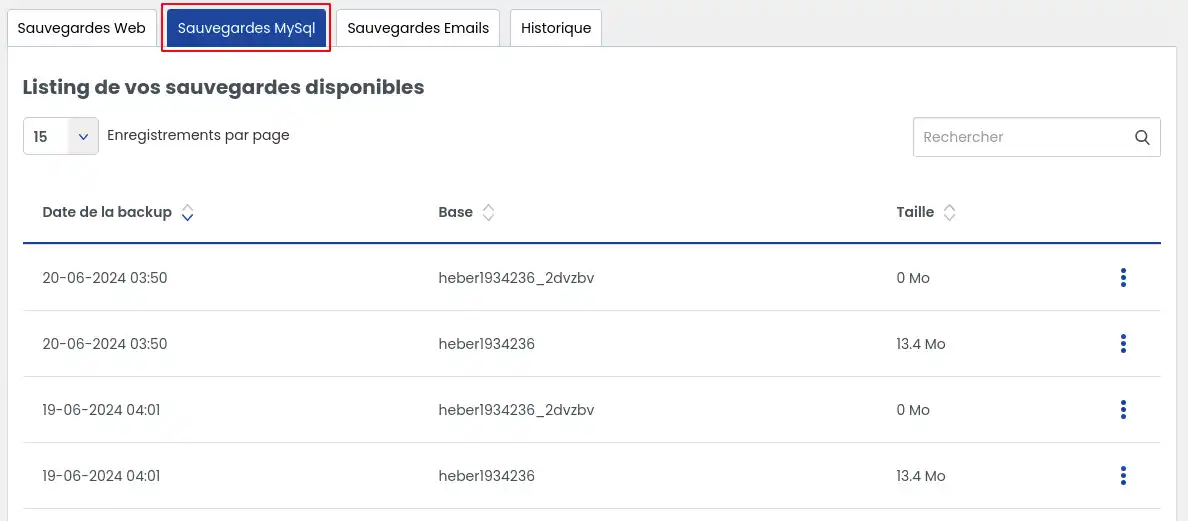
You will then see the list of backups available for your hosting package.
Downloading a backup is recommended if you want to keep a copy before making any sensitive manipulations, or simply to recover a database file on a given date.
Step 1: In the MySQL Backups tab, find the backup date you are interested in.
Step 2: On the line corresponding to the chosen backup, click on the action button on the right (1).
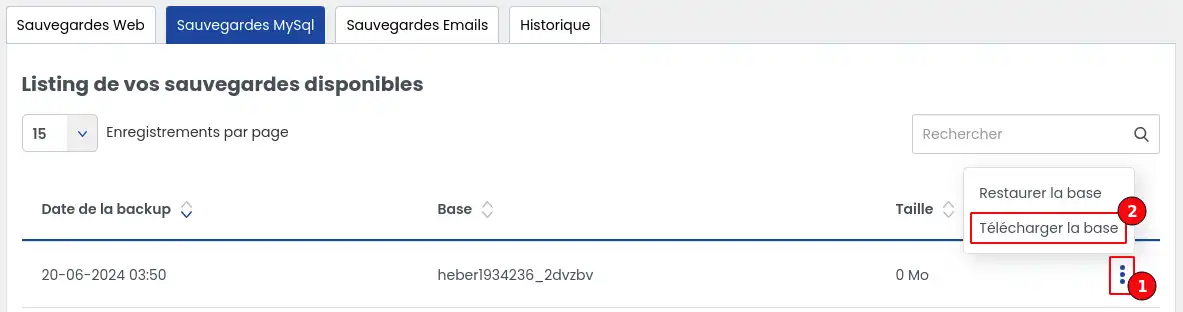
Step 3: In the actions list, click Download database (2).
Step 4 : The download will start automatically via your Internet browser.
The file will be saved in the download folder normally used by your browser.
Expected result
At the end of this operation, you will have a local copy of your MySQL backup on your computer.
You can keep it for security purposes or use it as part of a technical intervention.
Restoring your MySQL database allows you to return to the previous state of your database at the chosen date.
Warning before continuing
Restoring replaces the data currently in the database with that contained in the selected backup.
In other words, changes made after this date may be lost.
Before confirming the restore, take a few seconds to check that you have chosen the right date.
Step 1 : In the MySQL Backups tab, locate the backup corresponding to the desired date.
Step 2 : Click on the button to the right (1) of the backup in question to display the available actions.
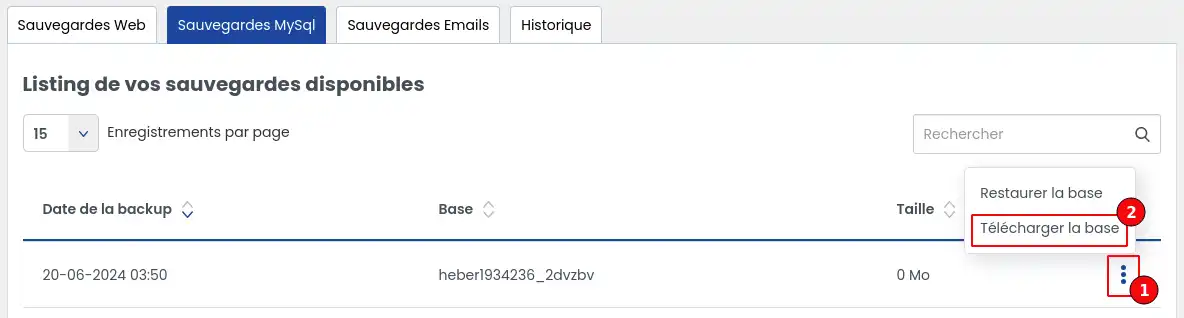
Step 3: Click Restore Database (2).
Step 4 : A confirmation window opens.
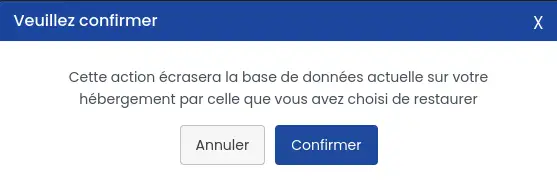
Read the message displayed carefully, then confirm only if you are certain you want to launch the restore.
Once the action has been confirmed, it is no longer possible to stop the restore before it is complete.
[bcolor]
Step 5 : After confirmation, open the History tab to track the progress of the operation.
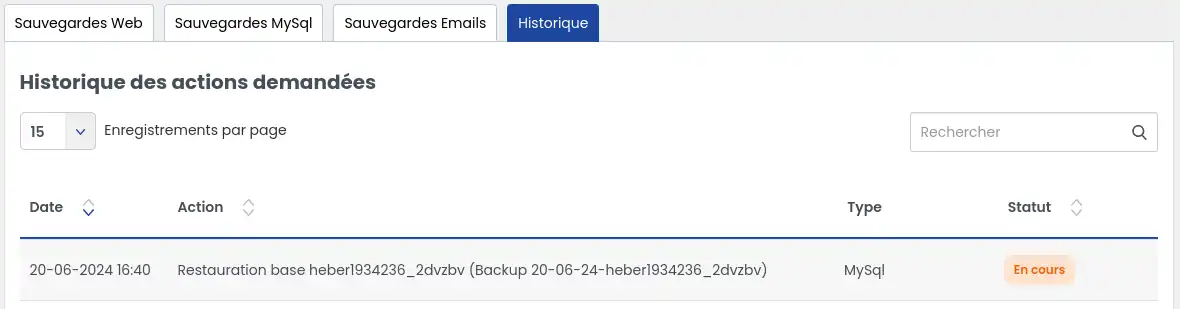
This section allows you to view the progress and consult the status of the restoration.
You can refresh the page regularly to see if the status is changing.
Step 6 : Restoration may take several minutes.
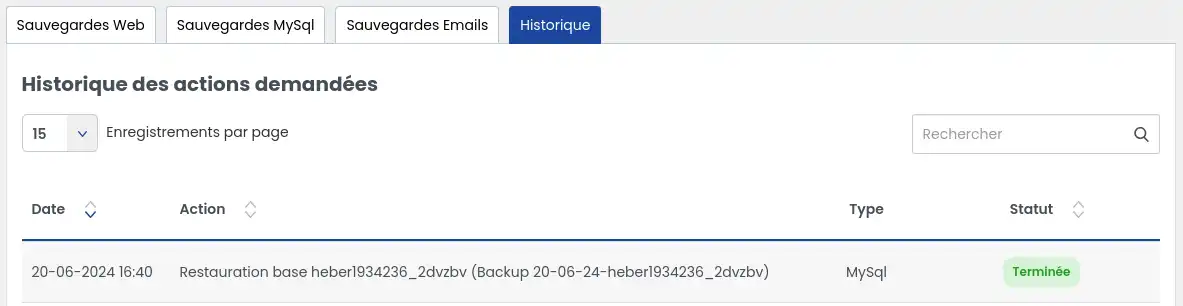
The time taken depends mainly on the size of the database to be restored.
Once the restore status has been completed in the History tab, carry out the following checks:
First check that the operation no longer appears as in progress.
Next, open your website or the tool concerned in your browser, as you normally would.
It is advisable to empty the cache or refresh the page if the expected result is not displayed immediately.
Then check the specific element that was causing the problem. For example :
Expected result
If the restoration has gone well, your database is back to the state it was in on the selected date.
Important point
If the site remains inconsistent after restoration, this may mean that only the contents of the database have been restored, but not the site files. In this case, it may be necessary to restore the web files to the same date in order to restore the site to a consistent state.
If the backup you are looking for is not visible in the list, there are several possible cases.
Case 1: the date you are looking for exceeds the period included in your package: you can have 30-day or 90-day backups. If the date you are looking for is older than the period included in your package, it will not be displayed.
Case 2: your package does not give you access to a sufficient storage period: subscribing to theBusiness support option gives you access to backups for up to 90 days instead of 30 days.
Case 3: you need a search or specific intervention: if the hosting has been upgraded since the date of the backup, a backup search service, carried out by a technician, is required to recover the backup.
Case 4: the date is too old: after 90 days, the backups are deleted. In this case, they can no longer be restored.
Start by checking whether your package gives access to 30-day or 90-day retention.
If the date you want is older than the period included, it will not be displayed.
The proposed backups correspond to the last 7 daily backups and then a weekly backup for a maximum of 3 months.
This may be normal. The operation may take several minutes depending on the volume of data. Check the History tab and refresh the page before concluding that there is a malfunction.
Empty your browser's cache, then reload the page.
Then check a specific element of the site.
If the site remains inconsistent, consider restoring the web files to the same date as the database.
In the event of an error, contact technical support so that a technician can analyse the problem and take action if possible.
When contacting support, please have the following information ready if possible:
You now know how to :
Rate this article :
This article was useful to you ?
Yes
No
0mn reading
How do you download or restore a backup of your web files?
0mn reading
How do you back up or restore your emails?
0mn reading
What level of backup should I choose for my web hosting?
 About LWS :
LWS is a 100% French web hosting company that focuses on quality and innovation and offers a responsive and competent technical service at affordable prices.
About LWS :
LWS is a 100% French web hosting company that focuses on quality and innovation and offers a responsive and competent technical service at affordable prices.