Contact us
 Customer Area
 Visit LWS
Rate this article :
This article was useful to you ?
 Yes
Yes
 No
No
 Article read
5457 once
Article read
5457 once Merci ! N'hésitez pas à
poser des questions sur nos documentations si vous souhaitez plus d'informations et nous aider à les
améliorer.
Merci ! N'hésitez pas à
poser des questions sur nos documentations si vous souhaitez plus d'informations et nous aider à les
améliorer.Vous avez noté 0 étoile(s)



Sommaire
Procédure
This documentation explains how to activate double authentication (2FA) on your LWS mailbox from Roundcube webmail.
Once this security has been activated, your password alone will no longer be enough to log in: you will also be asked to enter a temporary code displayed on your phone. This helps protect your e-mail address against unauthorised connections.
This procedure is intended for users who :
This documentation does not concern
This procedure does not cover :
Double authentication, also known as 2FA, adds a second check when you connect to your email.
Specifically
Even if someone knows your password, they won't be able to connect without this temporary code.
Before you start, make sure you have :
Open your Internet browser, then access your webmail.
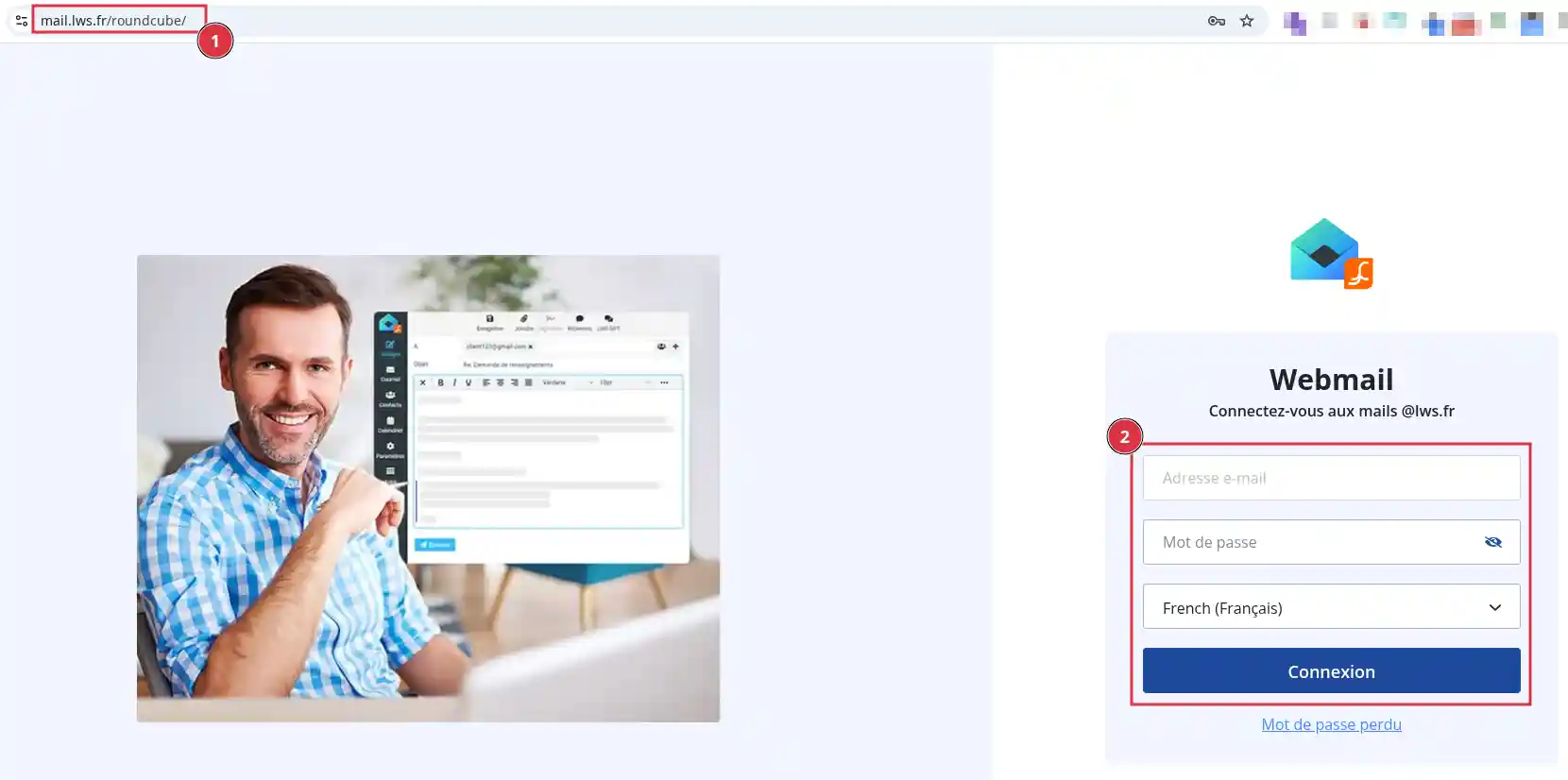
The webmail address (1) will look like this: https://mail.votredomaine.fr
Replace yourdomain.fr with your own domain name.
Once on the login page (2) :
Once you have logged in to your mailbox, click on the Settings icon (1) represented by a cogwheel.
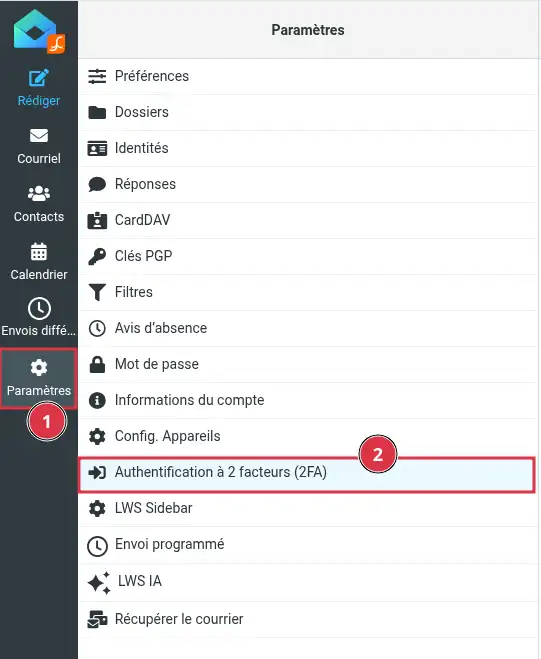
In the webmail side menu, click on Two-Factor Authentication (2FA ) (2).
In the Activate 2-factor authentication section :
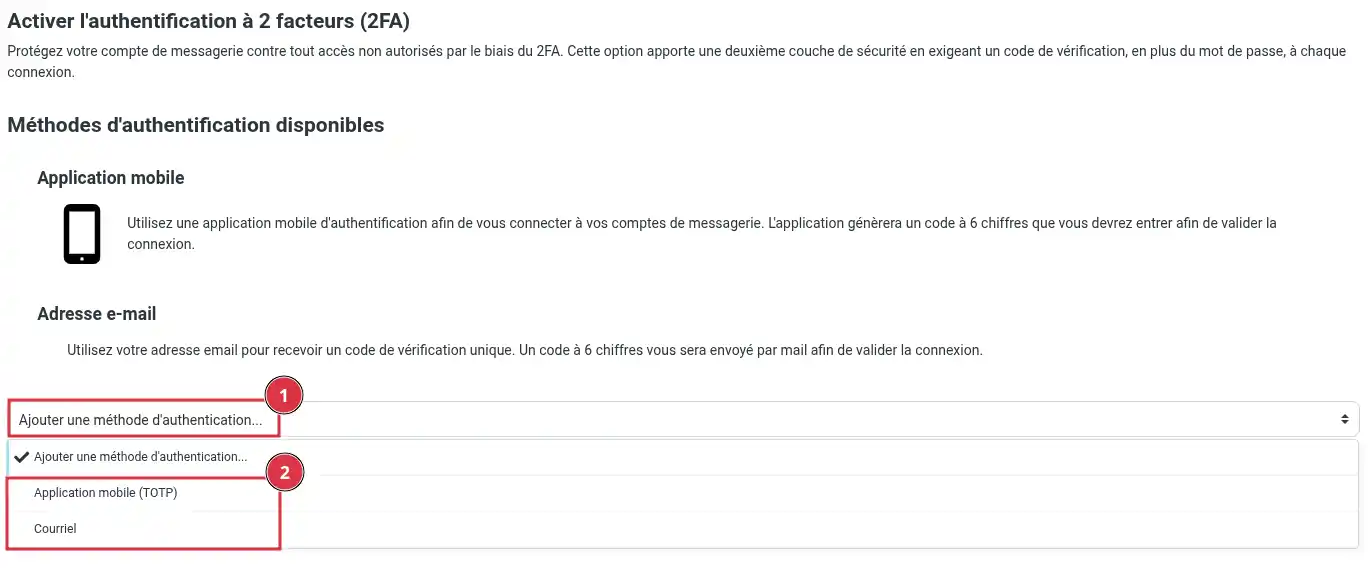
Suggested authentication methods:
To activate 2FA authentication via mobile :
- Select the "Mobile application (TOTP)" option
- Enter the password for your e-mail address.
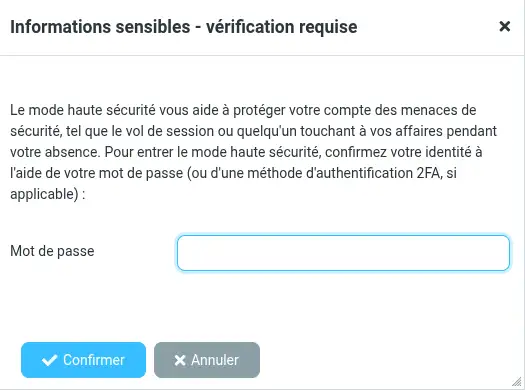
- then click on the "Confirm" button
a QR code will appear on the screen.
- Scan the QR code with an authentication application.
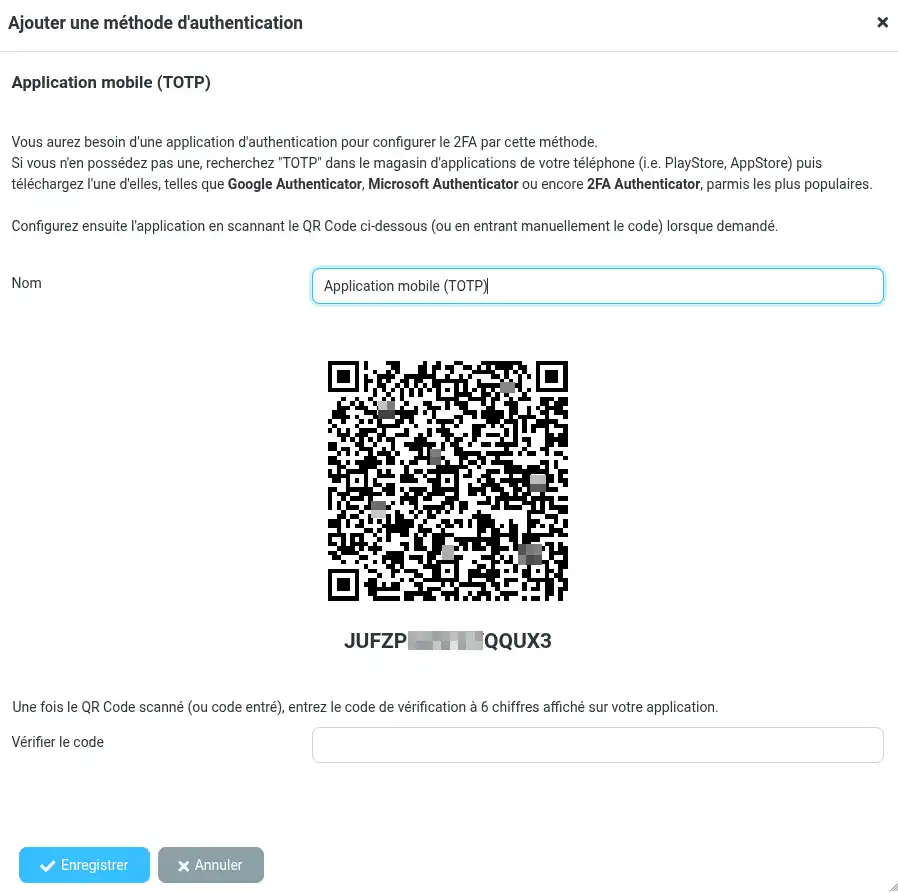
The application will start generating temporary 6-digit codes.
- Enter the verification code once, then click on "Save" to validate the procedure and definitively activate dual authentication via mobile.
This code is temporary. It changes automatically after a few seconds.
If the code changes during the operation, this is not abnormal: simply use the new code displayed.
To activate 2FA authentication via an email address:
- Select the "Email" option
- Enter the password for your email address.
- then click on the "Confirm" button
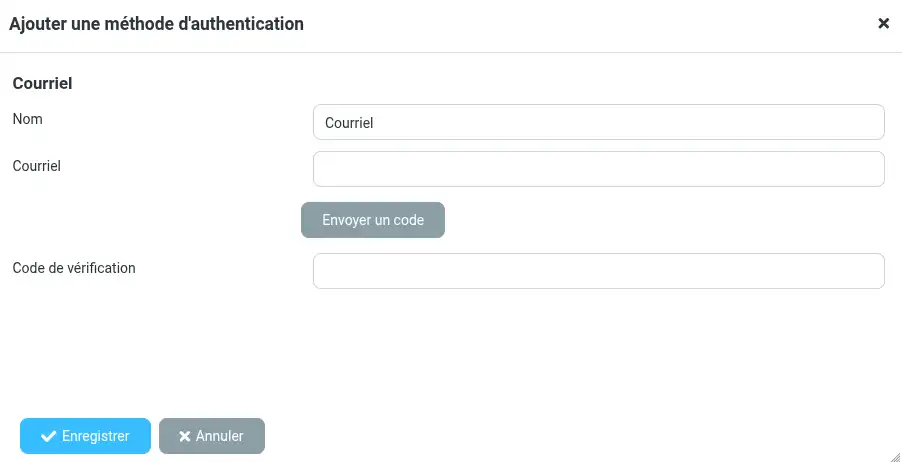
- Fill in the e-mail address that will receive the security code, then click on "Send code".
- Retrieve the code from your e-mail address.
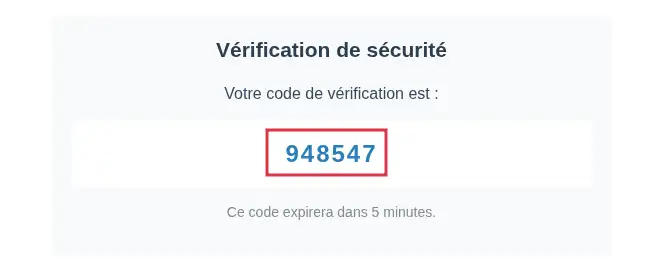
- Return to webmail and enter the code before clicking on the "Save" button .
You can enter several authentication methods. 2FA It is advisable to enter at least 2 2FA authentication methods so that you will still be able to log in if one method causes a problem (access problem, email address receiving the code, loss of mobile phone, etc.).

- Select the"delete" button for the method you wish to delete.

- Enter your e-mail address password.
- Then click on the "Confirm" button
This deletes the selected method. To remove 2FA authentication completely, you must no longer have any authentication methods listed.
To confirm that everything is in place:
What you should see
If activation was successful :
Activation takes effect as soon as the procedure has been validated.
Check that the time on your smartphone is set automatically.
A time difference may invalidate the code.
Also try :
Check :
If necessary, repeat the operation with another accessible e-mail address.
If you have registered another dual authentication method, use it to log in.
If you no longer have access to any of the registered methods, you will need to request assistance from LWS support to regain access to your email.
If you encounter any difficulty during activation or if you get stuck after activating it, contact LWS technical support from your customer area by opening a support ticket.
Dual authentication allows you to better protect your LWS mailbox by adding verification from your phone in addition to your password.
Once activated, remember to retain access to your authentication application to avoid any blockages when you log on again.
Rate this article :
This article was useful to you ?
Yes
No
1mn reading
Use roundcube webmail to manage your email address easily
1mn reading
How do I get started with Rouncube webmail?
0mn reading
How do I insert a signature in my e-mails sent with Roundcube?
1mn reading
How do I create an email autoresponder on Roundcube?
 About LWS :
LWS is a 100% French web hosting company that focuses on quality and innovation and offers a responsive and competent technical service at affordable prices.
About LWS :
LWS is a 100% French web hosting company that focuses on quality and innovation and offers a responsive and competent technical service at affordable prices.