Contact us
 Customer Area
 Visit LWS
Rate this article :
5/5 | 1 opinion
This article was useful to you ?
 Yes
Yes
 No
No
 Article read
13937 once
Article read
13937 once Merci ! N'hésitez pas à
poser des questions sur nos documentations si vous souhaitez plus d'informations et nous aider à les
améliorer.
Merci ! N'hésitez pas à
poser des questions sur nos documentations si vous souhaitez plus d'informations et nous aider à les
améliorer.Vous avez noté 0 étoile(s)



Sommaire
Procédure
This documentation is intended for customers with LWS Panel hosting.
It explains how to :
At the end of this guide, you'll know where to find the information you need to connect to your hosting and manage your FTP access.
Before you begin, make sure you have the following:
FTP is a connection method that allows files to be exchanged between your computer and your web hosting.
Specifically, it is used to :
The FTP identifiers do not correspond to your login identifiers for your LWS customer account. This is a separate access, linked to your hosting.
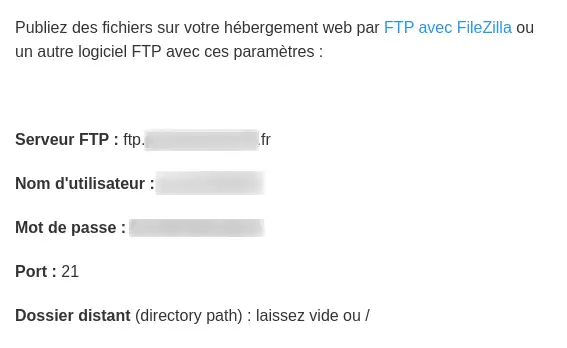
FTP settings are sent in the delivery email for your hosting. You can also retrieve them at any time from your LWS customer area.
Step 1: Log in to your customer account, then open the hosting in question.
Step 2: In the Files section, click on FTP Account(s).

Step 3: This will take you to the list of your FTP access(es).
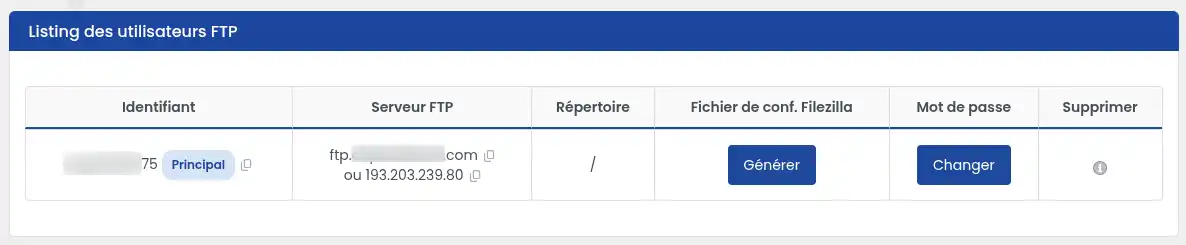
Here you will find useful information such as :
The password is not displayed for security reasons. If you don't know it or have forgotten it, you should change it by following the procedure below.
If you no longer know your FTP password, or if you want to strengthen it, you can change it directly from your LWS Panel. The source article indicates that the new password becomes usable in up to five minutes.
Step 1 : From your LWS customer account, open thehosting where the FTP account you want to change is located.
Step 2 : In the Files section, click on FTP Account(s).

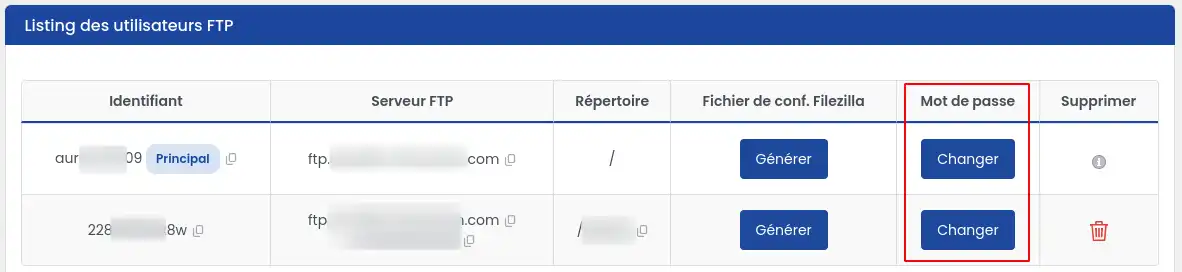
Step 3: Locate the FTP account concerned, then click on the Change button. By default, the main account is present. Depending on your plan, additional FTP accounts may also be displayed.
Step 4: In the window that opens :
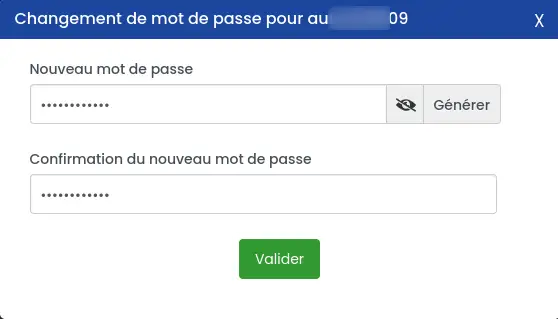
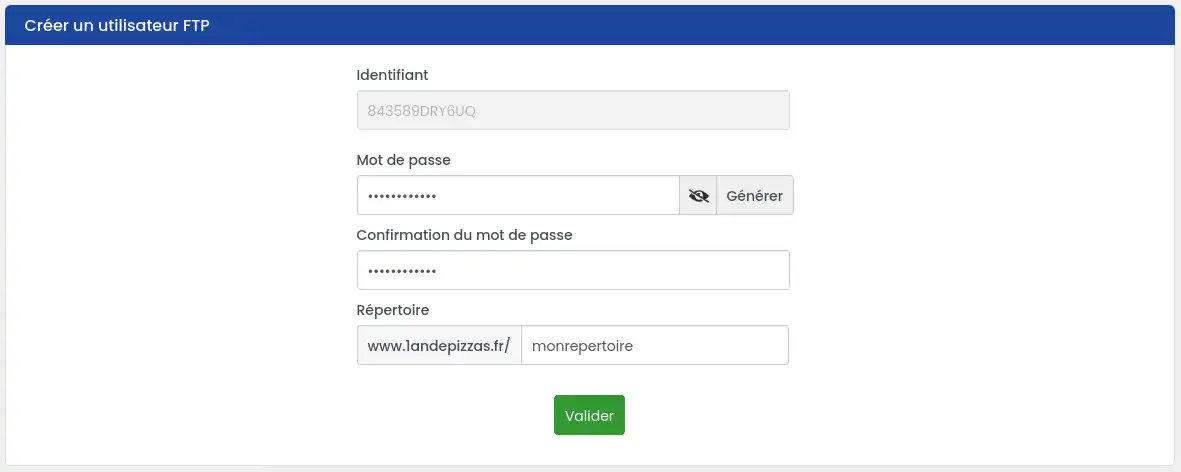
You can also use the Generate button to automatically create a more complex password, then confirm your choice. [bcolor_blue] Best practice for choosing your password To secure your FTP access, use a password : Time required Once the new password has been changed, it may take a few minutes for it to take full effect. During this time, a connection attempt may still fail with either the old or the new password. To learn how to publish your site and connect via FTP with FileZilla or other FTP software, please consult the dedicated documentation. When should I consult this additional documentation? Consult this specific help if you want to : An additional FTP account can be useful if you want to give limited access to another person or service provider, without sharing the main FTP account. Step 1: From your LWS customer account, open thehosting on which you wish to create additional FTP access. Step 2 : In the Files section, click on FTP Account(s). Step 3 : In the Create an FTP user section : [bcolor_blue]
Connecting to your hosting using FTP
Creating an additional FTP account
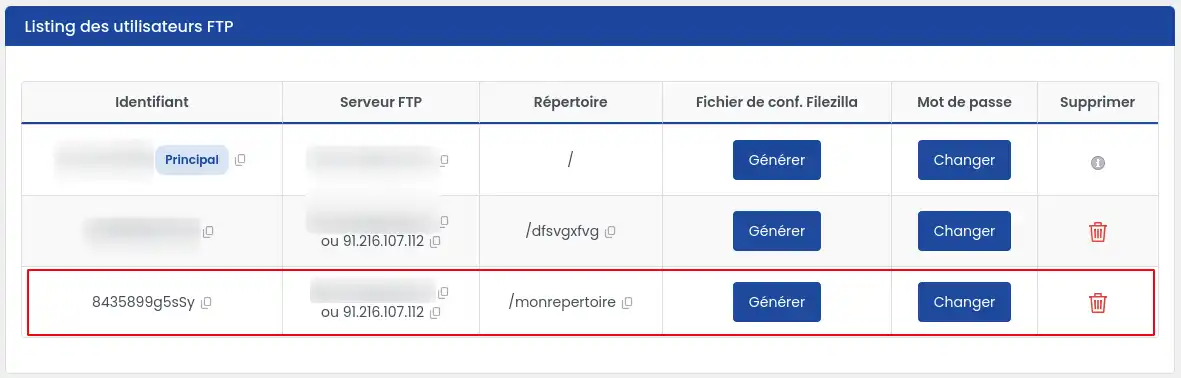
Step 4 : Once the account has been created, it should appear in the list of FTP users at the bottom of the page.
When should I use an additional FTP account?
This type of account is recommended if you want to :
Step 1: From your LWS customer account, open thehosting on which you wish to delete FTP access.
Step 2 : In the Files section, click on FTP Account(s).
Step 3 : In the FTP access list, click on the "trash" icon of the account you wish to delete.
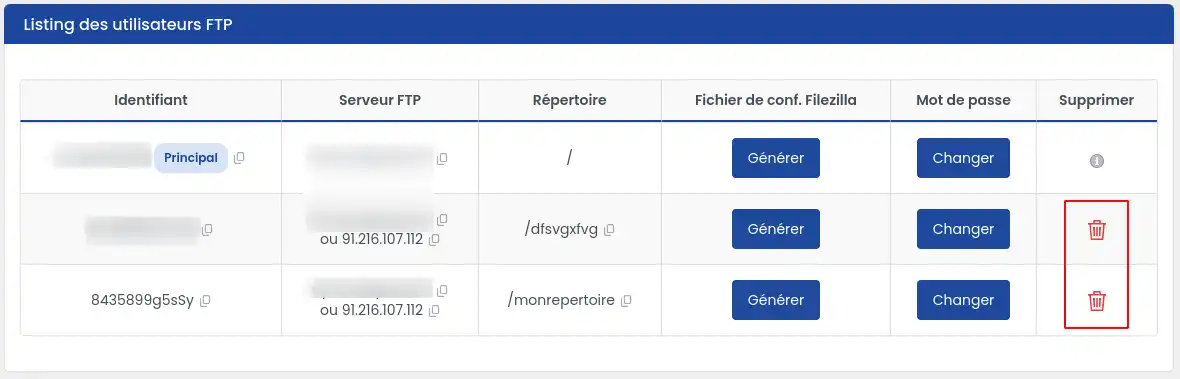
The main FTP account cannot be deleted. However, you can change the password.
[bcolor]
After a change, the password is not necessarily active immediately.
When making a secure connection for the first time, your software may display a message relating to the server certificate.
Read the message displayed by your software and confirm the connection if the information corresponds to the expected server.
This behaviour may be normal for a first connection. It does not necessarily mean that there is a problem.
If your domain does not yet point to LWS hosting, you need to use theIP of the web server instead of the ftp.yourdomain.tld address.
If your domain name has not yet been configured or is not yet active on the hosting :
If several FTP accounts are displayed in your panel, use :
To protect your hosting :
You now know how to :
To configure your FTP software and publish your site with FileZilla, consult the dedicated documentation:
Rate this article :
5/5 | 1 opinion
This article was useful to you ?
Yes
No
1mn reading
2mn reading
What types of domain can I buy?
3mn reading
Complete guide: Managing domain names
1mn reading
Recover the IP addresses of my LWS services
Bonjour,
Je vous remercie pour votre message.
Je vous invite à contacter directement notre service d’assistance afin d’apporter davantage de précisions sur votre configuration. Nos techniciens pourront ainsi analyser la situation et vous accompagner pour résoudre l’erreur rencontrée.
En attendant, si le fichier de configuration généré ne fonctionne pas correctement, je vous recommande d’essayer de vous connecter en utilisant directement les paramètres FTP fournis dans votre espace client (hôte, identifiant et mot de passe) plutôt que le fichier de configuration.
Cordialement, L'équipe LWS
 About LWS :
LWS is a 100% French web hosting company that focuses on quality and innovation and offers a responsive and competent technical service at affordable prices.
About LWS :
LWS is a 100% French web hosting company that focuses on quality and innovation and offers a responsive and competent technical service at affordable prices.