Contact us
 Customer Area
 Visit LWS
Rate this article :
This article was useful to you ?
 Yes
Yes
 No
No
 Article read
1270 once
Article read
1270 once Merci ! N'hésitez pas à
poser des questions sur nos documentations si vous souhaitez plus d'informations et nous aider à les
améliorer.
Merci ! N'hésitez pas à
poser des questions sur nos documentations si vous souhaitez plus d'informations et nous aider à les
améliorer.Vous avez noté 0 étoile(s)



Procédure
When a customer or visitor visits your Prestashop shop, certain information is recorded in certain tables of your site's database in order to generate statistics or keep track of the basket status of non-authenticated customers, among other things. This data is never deleted automatically and continues to accumulate and burden your site, causing slowdowns and even blocking access to your site if your database usage quotas are exceeded.
Most hosting providers, including LWS, limit databases to 1~2 GB, which can quickly be exceeded if your shop receives a lot of visits, as this will add row after row to your database. To avoid finding yourself in this situation, we recommend that you regularly delete the tables concerned before you reach a critical threshold.
For someone with some knowledge of database management, this is a quick and easy task to carry out, but it can be difficult and risky for a beginner, as incorrect handling could lead to data loss or a malfunctioning site. This is why LWS provides you, free of charge and on all our LWSPanel packages, with the Prestashop Manager (PSManager, for short): a tool that allows you to list and manage your Prestashop sites directly from your LWS panel.
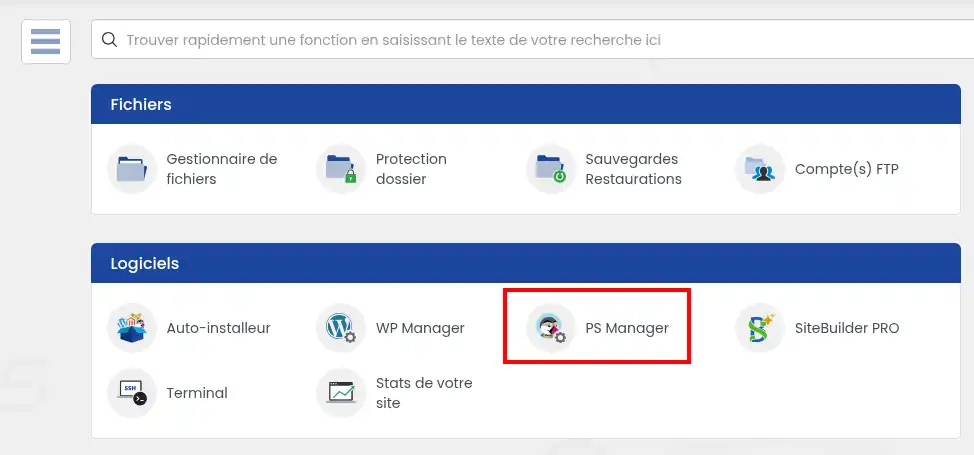
To access PSManager, go to your LWS customer area and select the "PS Manager" icon in the "Software" category.
This will take you to the list of your sites; here, identify the site you wish to clean and click on the "Manage" button.
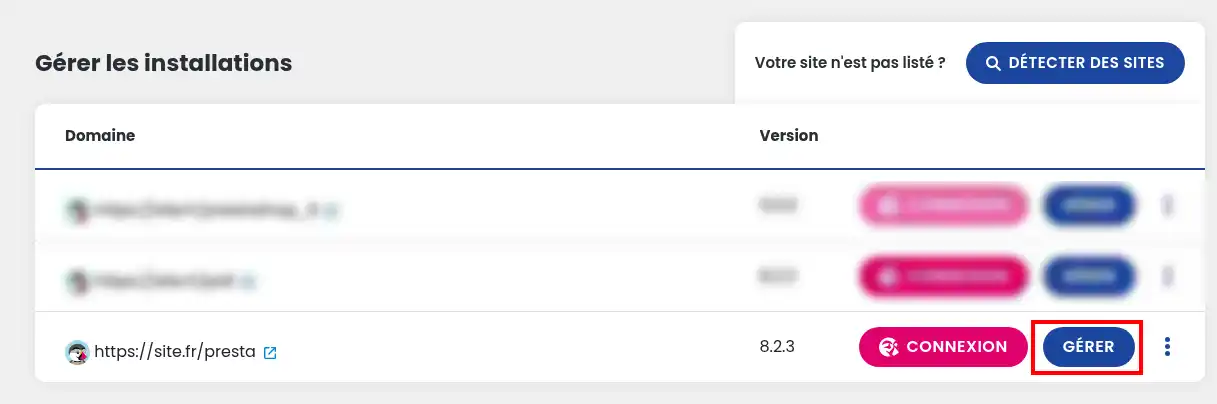
If no site appears, or if the site you are looking for is not displayed, click on the "Detect sites" button to refresh the list.
Once you're on your site's management page, scroll down to the bottom of the page, where you'll find the "Optimise database" block.
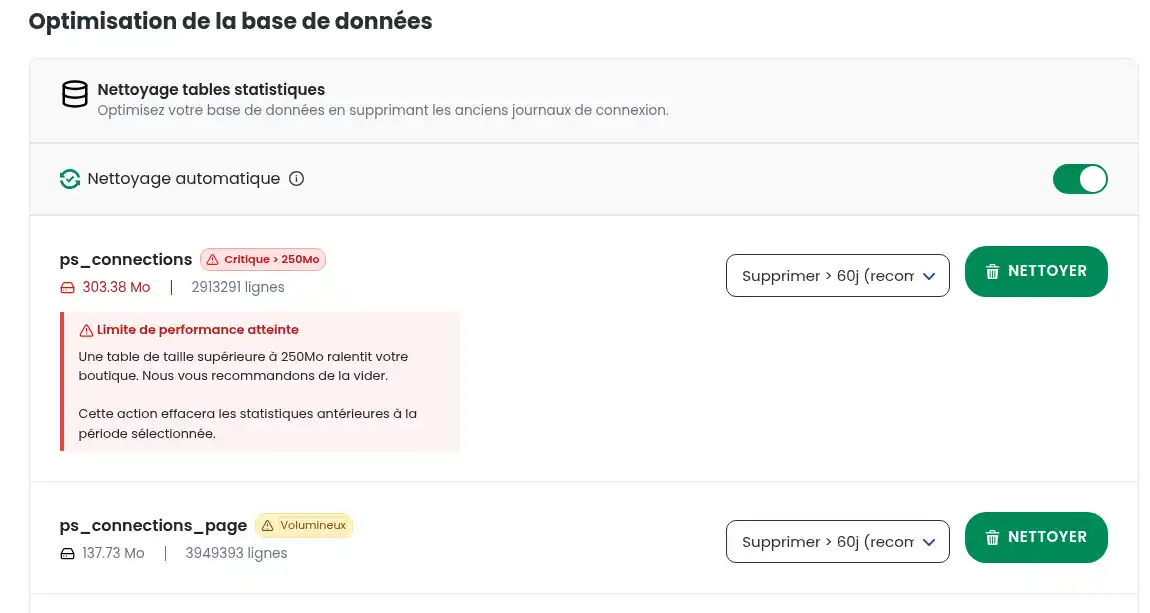
Identify the table you wish to empty and then choose which data to delete using the selector: either all data, or data older than 60/120/365 days.
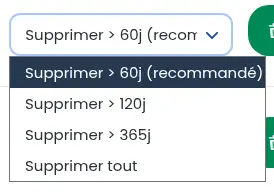
It is recommended that you keep the data that is less than a month old, in order to keep the most recent statistics and anonymous baskets, but there is no risk in emptying these tables entirely. Once you have made your choice, click on 'Clear' to clear the data from the chosen table.
If the table starts to become large, an indicator will be displayed next to the name of the table, informing you of its status.

This is only an indication and does not mean that you should immediately reduce the size of your table, but you may notice a very slight loss of performance. However, if the message indicates a critical state of the table (> 250 MB of data), it is strongly recommended that you empty it, as the message in the red box advises:
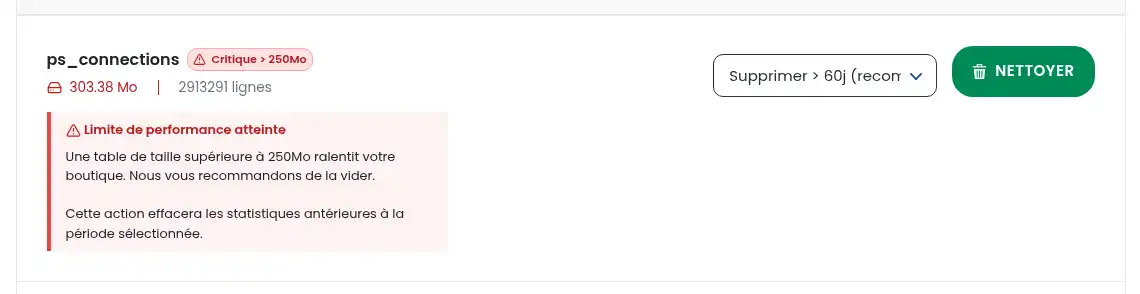
After 250MB, access to the table slows down, resulting in slowness and loss of performance. A cache system allows you to limit or even erase the drop in performance in certain cases, but this is only temporary: if the tables are not emptied, you run the risk of the table being blocked due to quotas being exceeded, making your entire site inaccessible.
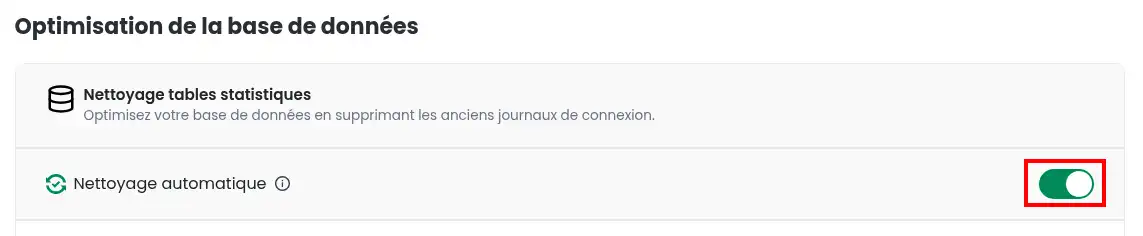
If managing your tables manually seems too complicated or time-consuming, you can also choose to activate or deactivate the automatic cleaning of Prestashop statistics tables, so that a robot can identify tables that are too heavy and automatically delete their data. The robot will try to delete data that is more than a year old, then 6 months old, 3 months old and finally a week old until its size falls below an acceptable threshold. If the data is still too large, the entire table will be emptied.
This option is activated by default for all Prestashop sites; unchecking the box deactivates it.
If you don't know what the different tables are used for, here's a quick summary to help you:
If your database has been blocked because one or more of the tables mentioned above has reached a critical size and exceeded your database quotas, you may need to manually recalculate the quotas for the database concerned in order to regain access to it. This is normally an automatic action, but the robot may take several minutes to run, leaving your site non-functional for that period. Simply follow this documentation to find out how to proceed.
You now know how to :
🚀 By following these tips, you'll ensure the fluidity and security of your e-commerce site, providing a better experience for your users. 🛒
Thank you for reading! If you have any questions or would like to share your experience with PSManager, please feel free to leave a comment. Your feedback is invaluable in helping us improve our services. 💬👍
Rate this article :
This article was useful to you ?
Yes
No
2mn reading
How do I create a Prestashop online shop?
1mn reading
How do you add an https url to your Prestashop shop?
1mn reading
How to change your shop title on prestashop 1.7
0mn reading
 About LWS :
LWS is a 100% French web hosting company that focuses on quality and innovation and offers a responsive and competent technical service at affordable prices.
About LWS :
LWS is a 100% French web hosting company that focuses on quality and innovation and offers a responsive and competent technical service at affordable prices.