Contact us
 Customer Area
 Visit LWS
Rate this article :
5/5 | 1 opinion
This article was useful to you ?
 Yes
Yes
 No
No
 Article read
23143 once
Article read
23143 once Merci ! N'hésitez pas à
poser des questions sur nos documentations si vous souhaitez plus d'informations et nous aider à les
améliorer.
Merci ! N'hésitez pas à
poser des questions sur nos documentations si vous souhaitez plus d'informations et nous aider à les
améliorer.Vous avez noté 0 étoile(s)



Sommaire
Procédure
LVE Manager allows you to precisely manage your resources, including CPU, I/O, memory, the number of processes and connections a cPanel account can use.
With LVE Manager, you can:
The SPEED memory limit controls the amount of memory that each cPanel account can use. LVE is able to identify, in real time, the amount of memory actually used by a client's processes. Physical limits are particularly effective in preventing problems of insufficient memory and overloading of your cPanel Cloud Server.
IO limits are used to limit the data rate for the cPanel account. They are measured in KB/s. When the limit is reached, the processes are put to sleep.
Process limits define the maximum amount of processor resources an account can use. When the user reaches the process limit, processes are slowed down. This limit is crucial to prevent processor usage peaks, which can often slow down the server.
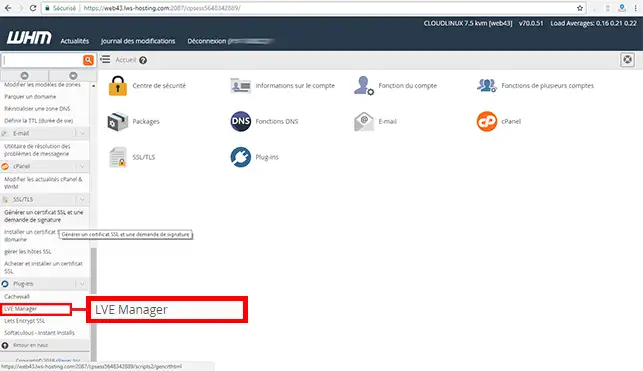
1. Log into your WHM management interface and click on the"LVE Manager" tab in the"Plugins" section.
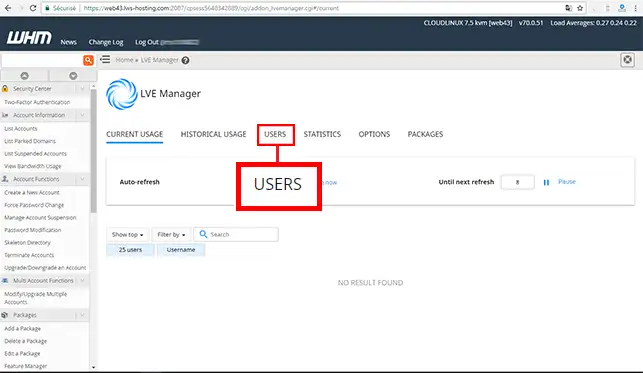
2. Click on the"Users" tab.
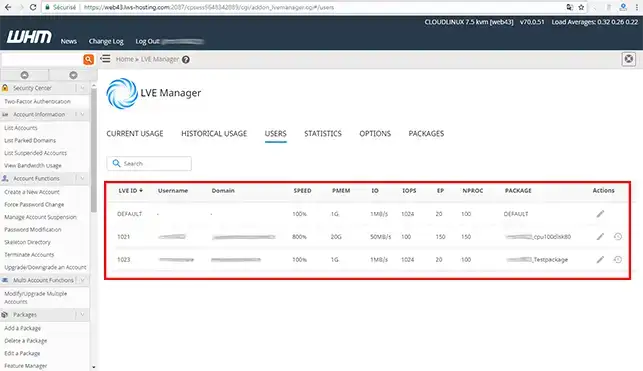
3. In this section, you will find the authorised limits per cPanel account. You can change these limits at any time.
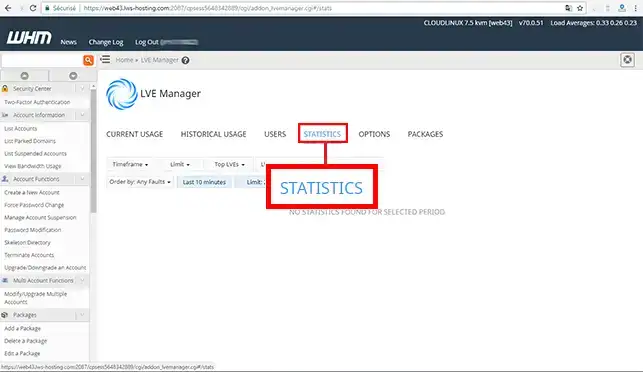
4. If you click on the "Statistics" tab, you will obtain all the real-time statistics for each cPanel account.
5. The"Package" tab allows you toadd or modify LVE quotas on your WHM interface.
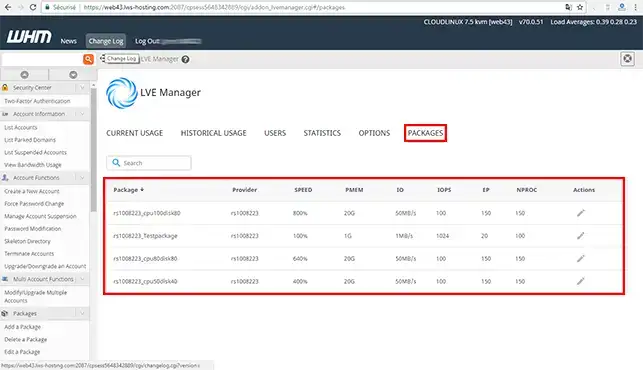
You can now understand LVE quotas and see them on the WHM interface of your cPanel Cloud Server with LWS. It is preferable to modify the quotas when creating a Web pack in order to limit the resources of the cPanel accounts and avoid any slowdown of your cPanel Cloud Server.
Don't hesitate to share your comments and questions!
Rate this article :
5/5 | 1 opinion
This article was useful to you ?
Yes
No
2mn reading
Use LVE quotas created on your hosting packages
Bonjour,
Je vous remercie pour votre message.
Je comprends que vous souhaitez obtenir une assistance concernant votre demande. Toutefois, je vous informe qu’il n’est pas possible de traiter ce type de demande via ce canal. Afin de garantir un suivi sécurisé et adapté à votre situation, il est nécessaire de contacter directement notre assistance technique.
Je vous conseille donc de procéder de l’une des manières suivantes :
Si vous avez accès à votre espace client :
Si vous n’avez pas accès à votre espace client :
Je vous remercie de votre attention et reste à votre disposition pour toute autre question ou complément d’information. Nous sommes là pour vous aider et vous accompagner dans vos démarches. Vous pouvez également contacter notre support technique depuis votre espace client ou via la page de contact mentionnée ci-dessus.
Cordialement,
L’équipe LWS
Bonjour,
Je vous remercie pour votre message.
Je comprends que vous souhaitez obtenir une assistance concernant votre demande. Toutefois, je vous informe qu’il n’est pas possible de traiter ce type de demande via ce canal. Afin de garantir un suivi sécurisé et adapté à votre situation, il est nécessaire de contacter directement notre assistance technique.
Je vous conseille donc de procéder de l’une des manières suivantes :
Si vous avez accès à votre espace client :
Si vous n’avez pas accès à votre espace client :
Je vous remercie de votre attention et reste à votre disposition pour toute autre question ou complément d’information. Nous sommes là pour vous aider et vous accompagner dans vos démarches. Vous pouvez également contacter notre support technique depuis votre espace client ou via la page de contact mentionnée ci-dessus.
Cordialement,
L’équipe LWS
 About LWS :
LWS is a 100% French web hosting company that focuses on quality and innovation and offers a responsive and competent technical service at affordable prices.
About LWS :
LWS is a 100% French web hosting company that focuses on quality and innovation and offers a responsive and competent technical service at affordable prices.